|
Feature
|
Interface
|
Abstract Class
|
|
Definition
|
An interface
cannot provide any code, just the signature.
|
An abstract class
can provide complete, default code and/or just the details that have to be
overridden.
|
|
Access Modifiers
|
Everything Public
|
Can have public,
private, internal for any method ,
function.
|
|
Adding
functionality (Versioning)
|
If we add a new
method to an Interface then we have to track down all the implementations of
the interface and define implementation for the new method.
|
If we add a new
method to an abstract class then we have the option of providing default
implementation and therefore all the existing code might work properly.
|
|
When to use
|
If various
implementations only share method signatures then it is better to use
Interfaces.
|
If various
implementations are of the same kind and use common behavior or status then
abstract class is better to use.
|
|
Multiple
inheritance
|
A class may
inherit several interfaces.
|
A class may
inherit only one abstract class.
|
Tuesday, April 2, 2019
Interface vs Abstract Class in C#


Monday, March 11, 2019
Service Fabric Deployment via Power shell
Here is the power-shell to deploy Service fabric application.
Just change Service Instances and Application Instances Variable as highlighted below.
Just change Service Instances and Application Instances Variable as highlighted below.
clear$AppPkgPathInImageStore = 'ProcessENTSFApp'$sfApplicationBaseName = 'fabric:/rsoni.ENT.Process.SFApp' $sfApplicationName=''$sfApplicationTypeName ='rsoni.ENT.Process.SFAppType'$sfApplicationTypeVersion='1.0.0'$sfAppServiceTypeName = 'rsoni.ENT.Process.Service.ProcessENTType'$AppFolderPath = 'C:\GitMapping\ENTSolution\rsoni.ENT.Process.SFApp\pkg\Debug'$TotalServiceInstances=5 $TotalApplicationInstances=4#Connect-ServiceFabricCluster @connectArgs#-ConnectionEndpoint $sfURLexit
|
Tuesday, October 23, 2018
Copy Data from Azure SQL to Azure Data Lake via Azure Data Factory
First create app
Registration and give access to Azure Data Lake

Now create a new app
registration

Provide details for App
registration

Copy the Application ID and
then Generate a key
App Id -
4f0fcf16-e148-411e-8b91-92c600d83c9e
Key

Once Key and AppId is
created go back to Azure Data lake to provide permission

Go to Access and select the
App Registration we created

Then Select permission for
Read, Write and Execute

Now this new App
Registration will have access for Azure Data Lake.
Now in Azure Data
Factory first go to Copy Data Wizard.


Now Select Source, which is
SQL Server existing Connection

Create a new Azure Data Lake
linked service for Destination


Provide the details of Azure
Data Lake Store
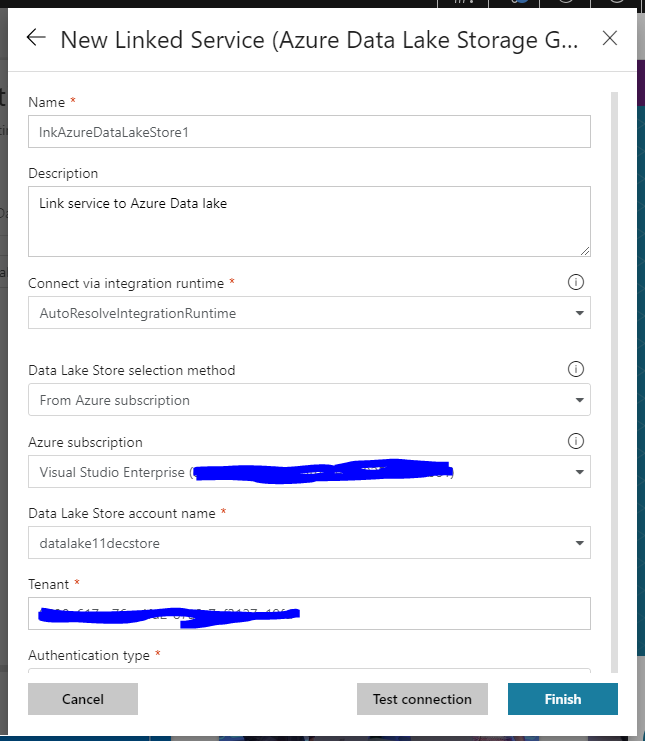
Also Provide the Service
Principal key to Access

Click on Test Connection -
"Connection Successful" means connected.
Select Folder for Data Lake
Store

Go Next with default options


Summery before executing the
pipeline.

Now you will see if Copy
pipeline execution is Completed.

you can also see in Monitor
tab for the Pipeline runs successfully.

Now go back to Data Lake
Store and click Data Explorer, you will
see a new file created there for ADFDemo

Once you open this ADF Demo
File you will see the comma separated values.

This is how we can
copy data from SQL Server to Azure Data lake via Azure Data factory.
Monday, October 22, 2018
Get List of SQL Tables where Record Count is more then 100
Here is the query to run in SSMS
Select * from
(
SELECT
QUOTENAME(SCHEMA_NAME(sOBJ.schema_id)) + '.' + QUOTENAME(sOBJ.name) AS [TableName]
, SUM(sPTN.Rows) AS [RowsCount]
FROM
sys.objects AS sOBJ
INNER JOIN sys.partitions AS sPTN
ON sOBJ.object_id = sPTN.object_id
WHERE
sOBJ.type = 'U'
AND sOBJ.is_ms_shipped = 0x0
AND index_id < 2 -- 0:Heap, 1:Clustered
GROUP BY
sOBJ.schema_id
, sOBJ.name) x
Where x.[RowsCount]>100
ORDER BY x.TableName
GO
Subscribe to:
Posts (Atom)