Disclaimer
:- This blog is nothing related to
Covid-19 information / guidelines. This is using data provided by ecdc (European Centre for Disease Prevention and Control) for data analysis and data
ploting in graphs in python.
|
First create blob
storage in Azure to use , here in Azure we will save CSV files which receive
from ecdc.
Second register
for Data bricks community edition from
here.
|
Once you have Data
Bricks community edition, create one notebook for python
 |
Now open the
python file.
First command is
to mount the Azure blog Storage where we can save the CSV File.
 Above path /mnt/covid19/ is mount for using at data bricks |
Now download the
Covid19 Data from ecdc site via get request and save it with today's date if
this file already exists then use the same else create a new one.
 |
Now read the CSV
File and do the grouping and filtering
 |
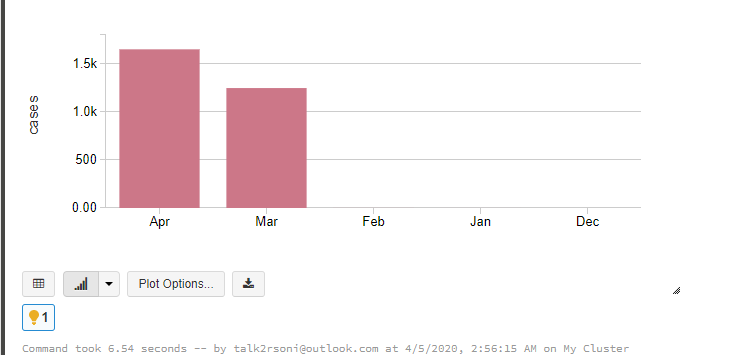
Above will display
the graph like below
 |
Sunday, April 5, 2020
Data Analysis and graph by PySpark


Tuesday, April 2, 2019
Interface vs Abstract Class in C#
|
Feature
|
Interface
|
Abstract Class
|
|
Definition
|
An interface
cannot provide any code, just the signature.
|
An abstract class
can provide complete, default code and/or just the details that have to be
overridden.
|
|
Access Modifiers
|
Everything Public
|
Can have public,
private, internal for any method ,
function.
|
|
Adding
functionality (Versioning)
|
If we add a new
method to an Interface then we have to track down all the implementations of
the interface and define implementation for the new method.
|
If we add a new
method to an abstract class then we have the option of providing default
implementation and therefore all the existing code might work properly.
|
|
When to use
|
If various
implementations only share method signatures then it is better to use
Interfaces.
|
If various
implementations are of the same kind and use common behavior or status then
abstract class is better to use.
|
|
Multiple
inheritance
|
A class may
inherit several interfaces.
|
A class may
inherit only one abstract class.
|
Monday, March 11, 2019
Service Fabric Deployment via Power shell
Here is the power-shell to deploy Service fabric application.
Just change Service Instances and Application Instances Variable as highlighted below.
Just change Service Instances and Application Instances Variable as highlighted below.
clear$AppPkgPathInImageStore = 'ProcessENTSFApp'$sfApplicationBaseName = 'fabric:/rsoni.ENT.Process.SFApp' $sfApplicationName=''$sfApplicationTypeName ='rsoni.ENT.Process.SFAppType'$sfApplicationTypeVersion='1.0.0'$sfAppServiceTypeName = 'rsoni.ENT.Process.Service.ProcessENTType'$AppFolderPath = 'C:\GitMapping\ENTSolution\rsoni.ENT.Process.SFApp\pkg\Debug'$TotalServiceInstances=5 $TotalApplicationInstances=4#Connect-ServiceFabricCluster @connectArgs#-ConnectionEndpoint $sfURLexit
|
Tuesday, October 23, 2018
Copy Data from Azure SQL to Azure Data Lake via Azure Data Factory
First create app
Registration and give access to Azure Data Lake

Now create a new app
registration

Provide details for App
registration

Copy the Application ID and
then Generate a key
App Id -
4f0fcf16-e148-411e-8b91-92c600d83c9e
Key

Once Key and AppId is
created go back to Azure Data lake to provide permission

Go to Access and select the
App Registration we created

Then Select permission for
Read, Write and Execute

Now this new App
Registration will have access for Azure Data Lake.
Now in Azure Data
Factory first go to Copy Data Wizard.


Now Select Source, which is
SQL Server existing Connection

Create a new Azure Data Lake
linked service for Destination


Provide the details of Azure
Data Lake Store
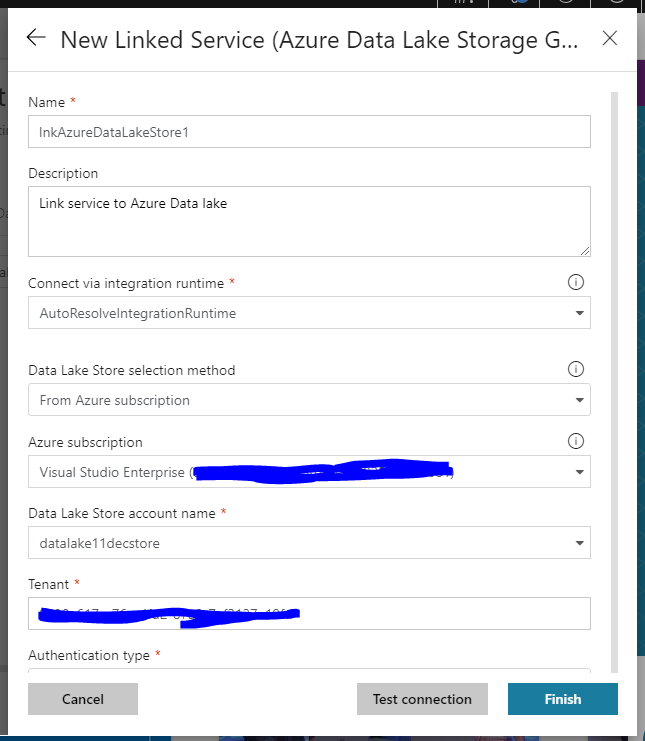
Also Provide the Service
Principal key to Access

Click on Test Connection -
"Connection Successful" means connected.
Select Folder for Data Lake
Store

Go Next with default options


Summery before executing the
pipeline.

Now you will see if Copy
pipeline execution is Completed.

you can also see in Monitor
tab for the Pipeline runs successfully.

Now go back to Data Lake
Store and click Data Explorer, you will
see a new file created there for ADFDemo

Once you open this ADF Demo
File you will see the comma separated values.

This is how we can
copy data from SQL Server to Azure Data lake via Azure Data factory.
Monday, October 22, 2018
Get List of SQL Tables where Record Count is more then 100
Here is the query to run in SSMS
Select * from
(
SELECT
QUOTENAME(SCHEMA_NAME(sOBJ.schema_id)) + '.' + QUOTENAME(sOBJ.name) AS [TableName]
, SUM(sPTN.Rows) AS [RowsCount]
FROM
sys.objects AS sOBJ
INNER JOIN sys.partitions AS sPTN
ON sOBJ.object_id = sPTN.object_id
WHERE
sOBJ.type = 'U'
AND sOBJ.is_ms_shipped = 0x0
AND index_id < 2 -- 0:Heap, 1:Clustered
GROUP BY
sOBJ.schema_id
, sOBJ.name) x
Where x.[RowsCount]>100
ORDER BY x.TableName
GO
Event Grid vs Event Hubs vs Service Bus
Comparison of services
Service
|
Purpose
|
Type
|
When to use
|
Event Grid
|
Reactive programming
|
Event distribution (discrete)
|
React to status changes
|
Event Hubs
|
Big data pipeline
|
Event streaming (series)
|
Telemetry and distributed data streaming
|
Service Bus
|
High-value enterprise messaging
|
Message
|
Order processing and financial transactions
|
Monday, December 4, 2017
Same Method name in 2 interfaces, Implemented in one class
This is a tricky
Question, if I create 2 interface with
same method name, and implement both in one class. Now if create object of this
derived class, which method it will pick-up/Execute at run time.
To test this need to
create 2 interface with same method Name.
interface
IFace1
{
void GetFaceDetails();
}
interface
IFace2
{
void GetFaceDetails();
}
Now create a class
to implement both interfaces
public class DerivedClass : IFace1, IFace2
{
public DerivedClass()
{
Console.WriteLine(" Constructor Called. ");
}
void IFace1.GetFaceDetails()
{
Console.WriteLine(" IFace1.GetFaceDetails ");
}
void IFace2.GetFaceDetails()
{
Console.WriteLine(" IFace2.GetFaceDetails ");
}
}
Now to use this if I
create an object of IFace1
then It will call IFace1.GetFaceDetails
Method.
IFace1 obj1 = new DerivedClass();
obj1.GetFaceDetails();
So it will print
" IFace1.GetFaceDetails
"
Similarly if I create an object of IFace2 then It will call IFace2.GetFaceDetails Method.
IFace2 obj2 = new DerivedClass();
obj2.GetFaceDetails();
So it will print
" IFace2.GetFaceDetails
"
Now what if I create
an object of DerivedClass itself.
DerivedClass obj = new DerivedClass();
obj.GetFaceDetails();
In above code it
will show a compiler error that GetFaceDetails Method doesn’t exists in
DerivedClass. So it will not execute at all. Or you will have to create another
method with same name in class, and compiler will pick that method in
execution.
Friday, December 1, 2017
Azure SQL Elastic Pool
Azure SQL Database
is PAAS service, It has Azure SQL Server
and inside this SQL Server we have SQL databases. The costing for SQL Server Database is based
on size and DTU. The Edition (Basic, Standard and Premium) & Pricing Tier
(DTUs) as used for costing.
Database Transaction Units
(DTU)
Microsoft guarantees
a certain level of resources for that database (independent of any other
database in the azure cloud) and providing a predictable level of performance.
This amount of resources is calculated as a number of Database Transaction
Units or DTUs, and is a blended measure of CPU, memory , I/O (data and
transaction log IO).
DTUs are most useful
for understanding the relative amount of resources between Azure SQL Databases
at different performance levels of a database equates to doubling the set of
resource available to that database. For e.g. a premium P11 database with 1750
DTUs provides 350x more DTU Compute power than a basic database with 5 DTUs.
For existing Azure
SQL Database workload, you can use SQL database Query performance insight to
understand your database resource consumption to get deeper insight to
understand your database resource consumption (DTUs). You can also use
sys.dm_db_resource_stats DMV to get the resource consumption information for
the last one hour. Also can use sys.resource_stats for last 14 days.
Elastic Database Transaction
Units (eDTUs)
If there are more
than 1 database and uses of these Database are different then Microsoft has
option to share the resources between these databases. Elastic pool is an
option on SQL Database Server that shares a pool of resources among those
database. The shared resources in an elastic pool measured by elastic Database
Transaction Units or eDTUs.
Powershell to create Elastic pool
Powershell parameters
$Location='Southeast Asia'
$ResourceGroupName='RG'
$SQLServerName='sql-server'
$DBName ='SQLDB1'
$EPoolName='SQLEpool'
$AdminLogin ='XXXXX'
$AdminPassword ='xxxxxxxxx'
$StartIP='219.91.0.0'
$EndIP='219.91.255.255'
First of all login
to Azure subscription
#********** Login to Azure account **********
Login-AzureRmAccount
Select-AzureRmSubscription -SubscriptionName '<<Your
Azure Subscription Name>>'
# Create new Elastic
pool
$EPool = New-AzureRmSqlElasticPool -ResourceGroupName $ResourceGroupName `
-ServerName
$SQLServerName `
-ElasticPoolName
$EPoolName `
-Edition
"Standard" `
-Dtu
50 `
-DatabaseDtuMin
10 `
# Move the database
to the pool
$Database = Set-AzureRmSqlDatabase -ResourceGroupName $ResourceGroupName `
-ServerName
$SQLServerName `
-DatabaseName
$DBName `
-ElasticPoolName
$EPoolName
Sunday, October 22, 2017
Azure Data Factory Version 2.0
There
are lots of improvements in Azure Data factory
in Version 2.0, which is still in
preview, even UI is not available but here are few steps in Power-Shell to
create and configure Azure data factory for version 2.0.
Below
example creates a pipeline in azure data factory v2.0 via power shell. For that
it moves data from one SQL table to another SQL table.
Prerequisites
- Create 2 tables in your SQL server, need to move data from ADFSync1 to ADFSync2 table
CREATE TABLE [dbo].[ADFSync1](
[ADFSyncId] [bigint] IDENTITY(1,1) NOT NULL,
[PipelineName] [nvarchar](50) NOT NULL,
[ActivityName] [nvarchar](50) NOT NULL,
[SourceDB] [nvarchar](50) NOT NULL,
[DestinationDB] [nvarchar](50) NOT NULL,
[Description] [nvarchar](255) NOT NULL,
[StartDateTime] [datetime] NULL,
[EndDateTime] [datetime] NULL,
[NoOfRecords] [int] NOT NULL,
[Status] [nvarchar](50) NOT NULL,
[LastExecutionDate] [datetime] NOT NULL,
CONSTRAINT
[PK_ADFSync1] PRIMARY KEY CLUSTERED
(
[ADFSyncId] ASC
)WITH (STATISTICS_NORECOMPUTE = OFF, IGNORE_DUP_KEY =
OFF)
)
GO
Also
insert few records in ADFSync1
Few Variables for PowerShell
$ResourceGroupName='ADFDemo'
$DataFactoryName='ADFV2-Test'
$Location='EAST
US 2'
- Create data Factory
First
of all login to Azure subscription
#********** Login to Azure account **********
Login-AzureRmAccount
Select-AzureRmSubscription -SubscriptionName '<<Your
Azure Subscription Name>>'
$dataFactory = Set-AzureRmDataFactoryV2 -ResourceGroupName $ResourceGroupName -Name $DataFactoryName -Location $Location
-ErrorAction Stop
Once
you create this , you can see DATA factory is created in your Azure
subscription

- Configure/ Create Source and destination connection
We
need 2 Json files for source and destination, for this example copy and paste
below text in 2 separate json files with name "Source-DB" and
"Destination-DB".
{
"name": "Source-DB",
"properties": {
"type":
"AzureSqlDatabase",
"description": "",
"typeProperties": {
"connectionString": {
"value": "Data
Source=<your server name>.database.windows.net;Initial Catalog=<your
DBName>;User ID=DBUSerID;Password=<<ur password>>;Integrated
Security=False;Encrypt=True;Connect Timeout=30",
"type":
"SecureString"
}
}
}
}
Now
based on above json create 2 linked services
Set-AzureRmDataFactoryV2LinkedService -DataFactoryName
$DataFactoryName -Name 'source-DB' -ResourceGroupName $ResourceGroupName -DefinitionFile 'source-DB.json' -Force -ErrorAction Stop
Set-AzureRmDataFactoryV2LinkedService -DataFactoryName
$DataFactoryName -Name 'destination-DB' -ResourceGroupName $ResourceGroupName -DefinitionFile
'destination-DB.json' -Force
-ErrorAction Stop
- Configure/create dataset
Now
need to create 2 datasets, one for input and another for output
Json
file for both is below
Dataset-Input-ADFSync
{
"name": "Dataset-Input-ADFSync",
"properties": {
"structure": [
{
"name": "PipelineName",
"type": "String"
},
{
"name": "ActivityName",
"type": "String"
},
{
"name": "SourceDB",
"type": "String"
},
{
"name": "DestinationDB",
"type": "String"
},
{
"name": "Description",
"type": "String"
},
{
"name": "StartDateTime",
"type": "Datetime"
},
{
"name": "EndDateTime",
"type": "Datetime"
},
{
"name": "NoOfRecords",
"type": "Int64"
},
{
"name": "Status",
"type": "String"
},
{
"name": "LastExecutionDate",
"type": "Datetime"
}
],
"type": "AzureSqlTable",
"linkedServiceName": {
"referenceName": "Source-DB",
"type": "LinkedServiceReference"
},
"typeProperties": {
"tableName": "[dbo].[ADFSync1]"
}
}
}
Dataset-Output-ADFSync
{
"name": "Dataset-Output-ADFSync",
"properties": {
"structure": [
{
"name": "PipelineName",
"type": "String"
},
{
"name": "ActivityName",
"type": "String"
},
{
"name": "SourceDB",
"type": "String"
},
{
"name": "DestinationDB",
"type": "String"
},
{
"name": "Description",
"type": "String"
},
{
"name": "StartDateTime",
"type": "Datetime"
},
{
"name": "EndDateTime",
"type": "Datetime"
},
{
"name": "NoOfRecords",
"type": "Int64"
},
{
"name": "Status",
"type": "String"
},
{
"name": "LastExecutionDate",
"type": "Datetime"
}
],
"type": "AzureSqlTable",
"linkedServiceName": {
"referenceName": "Destination-DB",
"type": "LinkedServiceReference"
},
"typeProperties": {
"tableName": "[dbo].[ADFSync2]"
}
}
}
Now
in PowerShell need to execute following commands.
Set-AzureRmDataFactoryV2Dataset
-DataFactoryName
$DataFactoryName -Name 'Dataset-Input-ADFSync' -ResourceGroupName $ResourceGroupName -DefinitionFile 'Dataset-Input-ADFSync.json' -Force -ErrorAction Stop
Set-AzureRmDataFactoryV2Dataset -DataFactoryName $DataFactoryName -Name 'Dataset-Output-ADFSync'-ResourceGroupName $ResourceGroupName -DefinitionFile 'Dataset-Output-ADFSync.json' -Force -ErrorAction Stop
- Create Pipeline
Now
create json for pipeline and add that via powershell, this pipeline should have
one activity.
{
"name": "Pipeline-99",
"properties": {
"description": "Pipeline to Sync ADFSync Table",
"activities": [
{
"type": "Copy",
"typeProperties": {
"source": {
"type": "SqlSource",
"sqlReaderQuery": "select
[PipelineName],[ActivityName],[SourceDB],[DestinationDB],[Description],[StartDateTime],[EndDateTime],[NoOfRecords],[Status],[LastExecutionDate]
from [dbo].[ADFSync1]"
},
"sink": {
"type": "SqlSink",
"sqlWriterCleanupScript": "$$Text.Format('delete from
[dbo].[ADFSync2]')",
"writeBatchSize": 0,
"writeBatchTimeout": "00:00:00"
},
"translator": {
"type": "TabularTranslator",
"columnMappings":
"PipelineName:PipelineName,ActivityName:ActivityName,SourceDB:SourceDB,DestinationDB:DestinationDB,Description:Description,StartDateTime:StartDateTime,EndDateTime:EndDateTime,NoOfRecords:NoOfRecords,Status:Status,LastExecutionDate:LastExecutionDate"
}
},
"inputs": [
{
"referenceName": "Dataset-Input-ADFSync",
"type": "DatasetReference"
}
],
"outputs": [
{
"referenceName": "Dataset-Output-ADFSync",
"type": "DatasetReference"
}
],
"policy": {
"timeout": "1.00:00:00",
"concurrency": 1,
"executionPriorityOrder": "NewestFirst",
"style": "StartOfInterval",
"retry": 3,
"longRetry": 0,
"longRetryInterval": "00:00:00"
},
"name": "Activity-ADFSync"
}
]
}
}
Powershell
command to add this pipeline.
SET-AzureRmDataFactoryV2Pipeline -DataFactoryName $DataFactoryName -Name 'Pipeline-99' -ResourceGroupName $ResourceGroupName -DefinitionFile
'Pipeline-99.json' -Force -ErrorAction Stop
- Trigger Pipeline
Now
create json (Trigger-Pipelines.json) for pipeline and add that via powershell,
this pipeline should have one activity.
{
"properties": {
"type": "ScheduleTrigger",
"typeProperties": {
"recurrence": {
"frequency": "Minute",
//"<<Minute",
"Hour",
"Day", "Week", "Year>>",
"interval": "5", // optional, how often to fire
(default to 1)
"startTime": "2017-10-09",
"endTime": "2099-10-09",
"timeZone": "UTC"
},
"pipelines": [
{
"pipelineReference": {
"type": "PipelineReference",
"referenceName": "Pipeline-99"
},
"parameters": {
"Param1": {
"type": "String",
"Value": "abc"
},
"Param2": {
"type": "String",
"Value": "abc"
}
}
}
]
}
}
}
Powershell
to trigger the pipeline
$runId = Invoke-AzureRmDataFactoryV2Pipeline -DataFactoryName $dataFactoryName -ResourceGroupName $resourceGroupName -PipelineName "Pipeline-99"
-ParameterFile 'Trigger-Pipelines.json'
-ErrorAction Stop
Write-Host "Activity run
details:" -foregroundcolor "Yellow"
$result = Get-AzureRmDataFactoryV2ActivityRun
-DataFactoryName $dataFactoryName -ResourceGroupName $resourceGroupName -PipelineRunId $runId -RunStartedAfter (Get-Date).AddMinutes(-3) -RunStartedBefore (Get-Date).AddMinutes(3)
$result
Subscribe to:
Posts (Atom)